BenQ PD2770U review: the display that calibrates itself
Reviewing BenQ's new PD2770U, a DesignVue display with Adobe RGB, a newly designed light hood, and a built-in colorimeter for easy color calibrations.


BenQ has introduced the PD2770U, a new $1699 (MSRP) 27-inch 4K display that features a built-in colorimeter, RJ45 network connectivity, a magnetized light hood, and support for the Adobe RGB color space. While the display is technically part of the company’s DesignVue line for designers and visual artists, the inclusion of Adobe RGB and other new features should make it of interest to photographers as well.
- Built-in colorimeter
- Simpler color calibration workflow for average users
- Built-in color modes can be easily re-calibrated
- Excellent color accuracy and brightness uniformity for all types of creative work
- 96W downstream USB-C connection for laptops
- Magnetized light hood
- Built-in colorimeter not compatible with Palette Master Ultimate
- No 5K option
- Matte finish isn't truly matte
- Confusing ICC profile syncing
General overview of the PD2770U
The BenQ PD2770U is a hardware-calibrated display built for creative professionals who prioritize color accuracy and require a neutral, faithful representation of their work that holds up consistently across different viewing environments. Here are the basic specifications of the model:
- Built-in colorimeter
- Screen Size: 27"
- Panel Type: LCD/IPS
- Aspect Ratio and Resolution: 16:9 / 4K / 3840 x 2160
- PPI: 163
- Bit Depth: 10-bit (8-bit with FRC)
- Contrast: 1000:1
- Brightness: 400 nits
- Refresh rate: 60 Hz
- Viewing Angles: 178°/178°
- Average Delta-E: <1.5
- Connections: two HDMI, one Display Port, two USB-C (one is Thunderbolt 4 compatible and provides 96W power output for laptops), plus an RJ45 ethernet port for DMS network control. USB-A inputs on the bottom.
- Color Spaces: All industry standards including Adobe RGB, DCI-P3, Display P3, Rec.709, sRGB, plus custom BenQ spaces including M-Book, Darkroom and others. No black and white mode.
- Color Space Coverage: 100% Rec.709, 99% Adobe RGB, and 99% P3
- Finish: Nano Matte
Built-in colorimeter
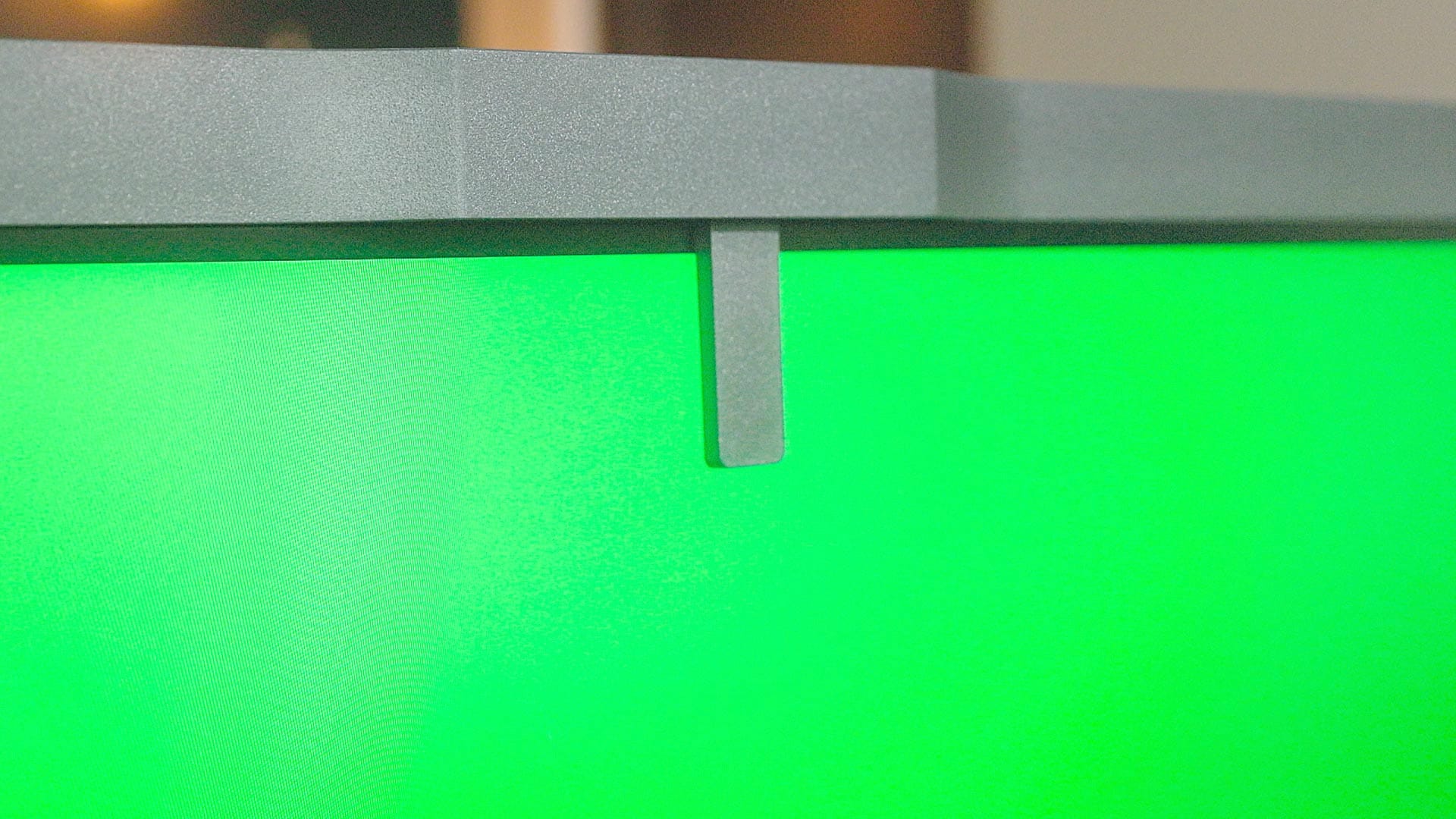
The PD2770U is BenQ's first display with a built-in colorimeter, housed inside the notch at the top of the display. This feature has been a long time coming, following other display manufacturers including Dell, Asus and Eizo. The colorimeter is used to calibrate the built-in color modes of the display to ensure color accuracy throughout the lifespan of the display. I'll go into much greater detail with the new colorimeter later in this review.
Resolution and screen size
Screen dimensions is 27", which for me is the sweet spot for a desktop monitor. Bigger than 24", yet smaller than 32" (the latter of which feels to me like sitting in front of a television). Using 27", I can see corner-to-corner and edge-to-edge without turning my head, unlike a bigger 32" display.
Resolution is 4K, 3840 x 2160, with a 16:9 aspect ratio. With other 27" 4K monitors, I've always lowered their resolution in my macOS display settings to make text, icons and buttons larger and easier to see. Same is true with the PD2770U. The real benefit of 4K (and high resolution displays in general) is increased pixels per inch (PPI), which is 163 with the PD2770U. This makes text, icons, menus, everything on screen clearer and easier to see without undesirable fringing or blurring.
Panel hardware and finish
The PD2770U uses a IPS LCD panel rather than Mini-LED or OLED. While those technologies can deliver deeper blacks, IPS offers advantages in longevity, consistent color accuracy, and wide viewing angles.
The Nano Matte coating effectively reduces reflections without introducing the heavy diffusion typical of aggressive matte finishes. That said, it is noticeably glossier than the Nano Matte coating used on BenQ’s SW-series displays, giving it more of a semi-gloss appearance.
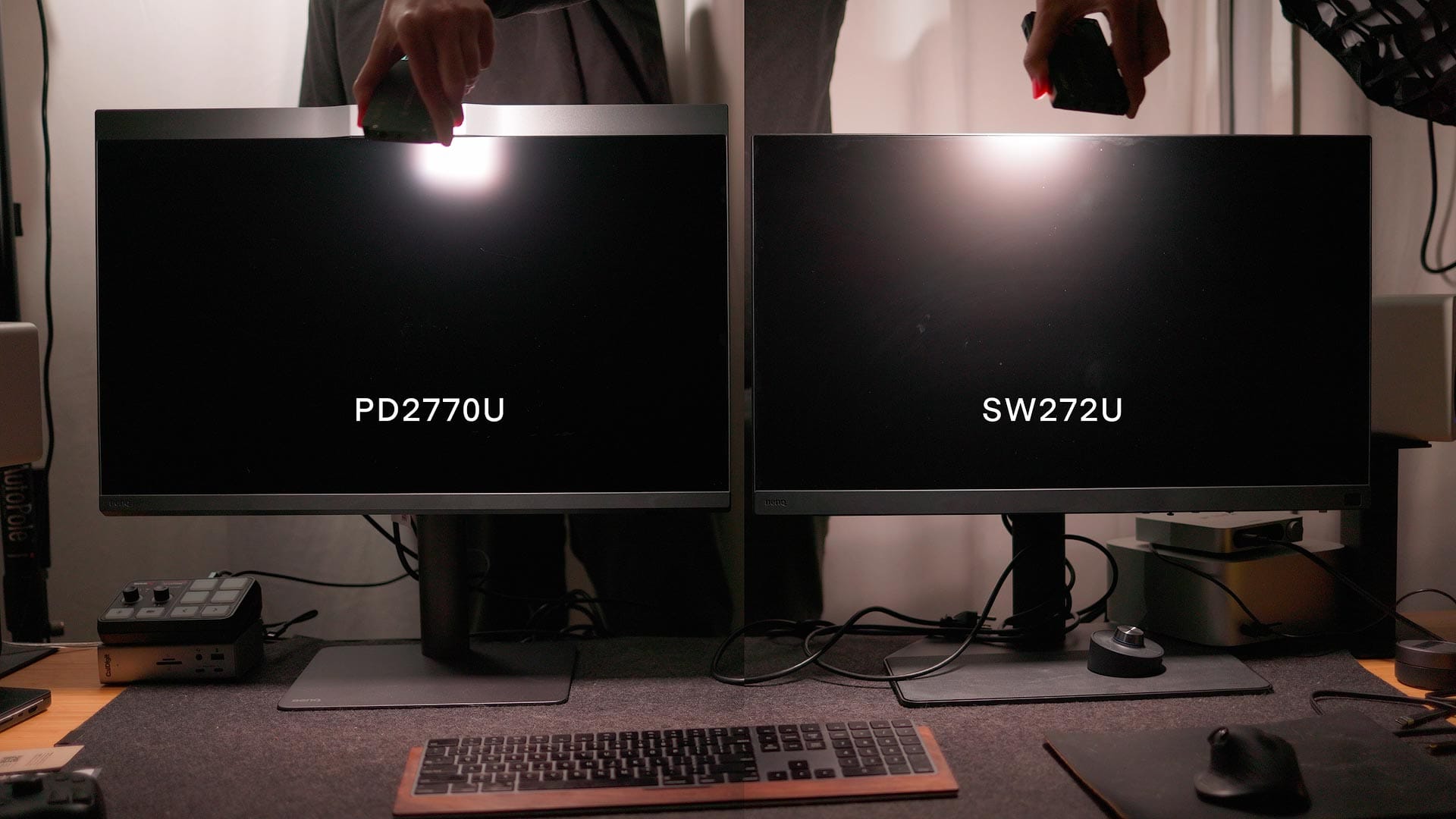
The PD2770U uses a backlit LCD with IPS (In-Plane Switching) technology. Some users might prefer Mini-LED or OLED for deeper blacks, but LCD has its advantages including improved longevity (no risk of burn-in), better color accuracy, and wider viewing angles (up to 170°).
Display modes and color spaces
The PD2770U supports a wide range of industry-standard color spaces, including sRGB, Rec.709, Display P3, DCI-P3, and Adobe RGB, along with several BenQ-specific modes. This allows users to work directly in the color space appropriate to their medium rather than relying on software conversions.
GamutDuo is a unique feature, splitting the screen into two independently selectable color spaces. For photographers, this mode makes it possible to preview how a wide-gamut Adobe RGB image will appear on a constrained sRGB display. I prefer to do my soft-proofing in Photoshop, but I can see how GamutDuo might be helpful for some users.
Picture-in-Picture (PIP) is also supported, allowing a second video input to be displayed in a floating window with small, medium, or large size options and placement in any of the four corners.
Accessories
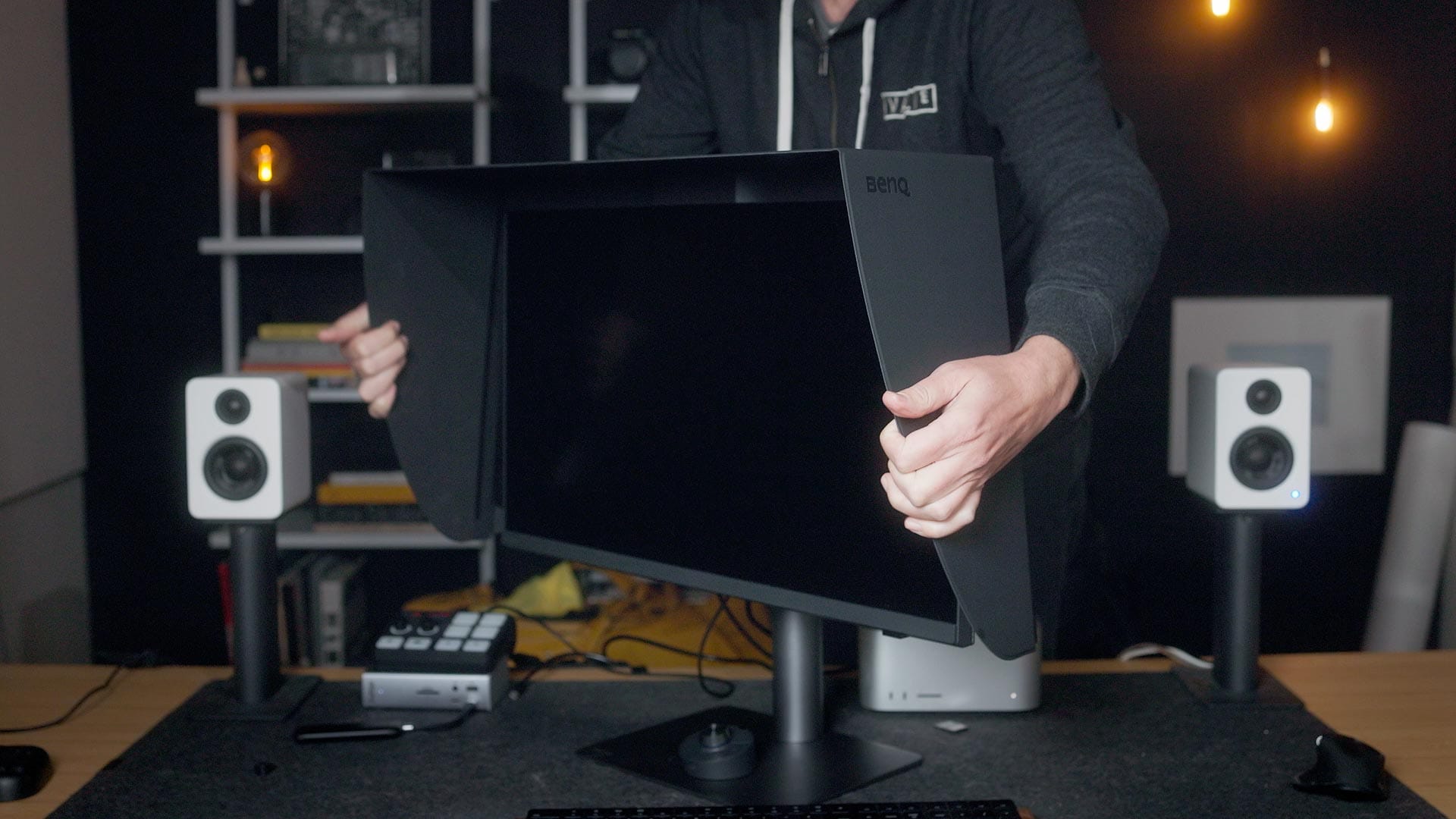
Unlike most DesignVue displays, the PD2770U ships with a redesigned magnetic light hood. It’s compact, easy to attach, and effective at blocking ambient light, though it does not support portrait orientation and blocks any accessories mounted on top of the display.
The HotKey Puck provides quick access to brightness, volume, KVM switching, and color modes. While limited to certain functions, it’s particularly useful for users who regularly switch between color spaces to work on different types of creative media.
Color calibration options
The PD2770U arrives fully calibrated from BenQ. All color modes are accurate and ready to go from day one. Over time, however, color accuracy will slightly shift as the display ages, so periodic re-calibration is a good practice. The PD2770U can be calibrated two ways: recalibrating the built-in color modes using the integrated colorimeter, or creating custom calibrations using Palette Master Ultimate (PMU) with a third-party colorimeter (compatibility list).
Calibrating using the built-in colorimeter
For most users, the built-in colorimeter offers the simplest workflow. The display can automatically recalibrate all built-in color modes, or only selected ones, and supports scheduled recalibration. Brightness can be manually set or optimized using the display’s ambient light sensor.
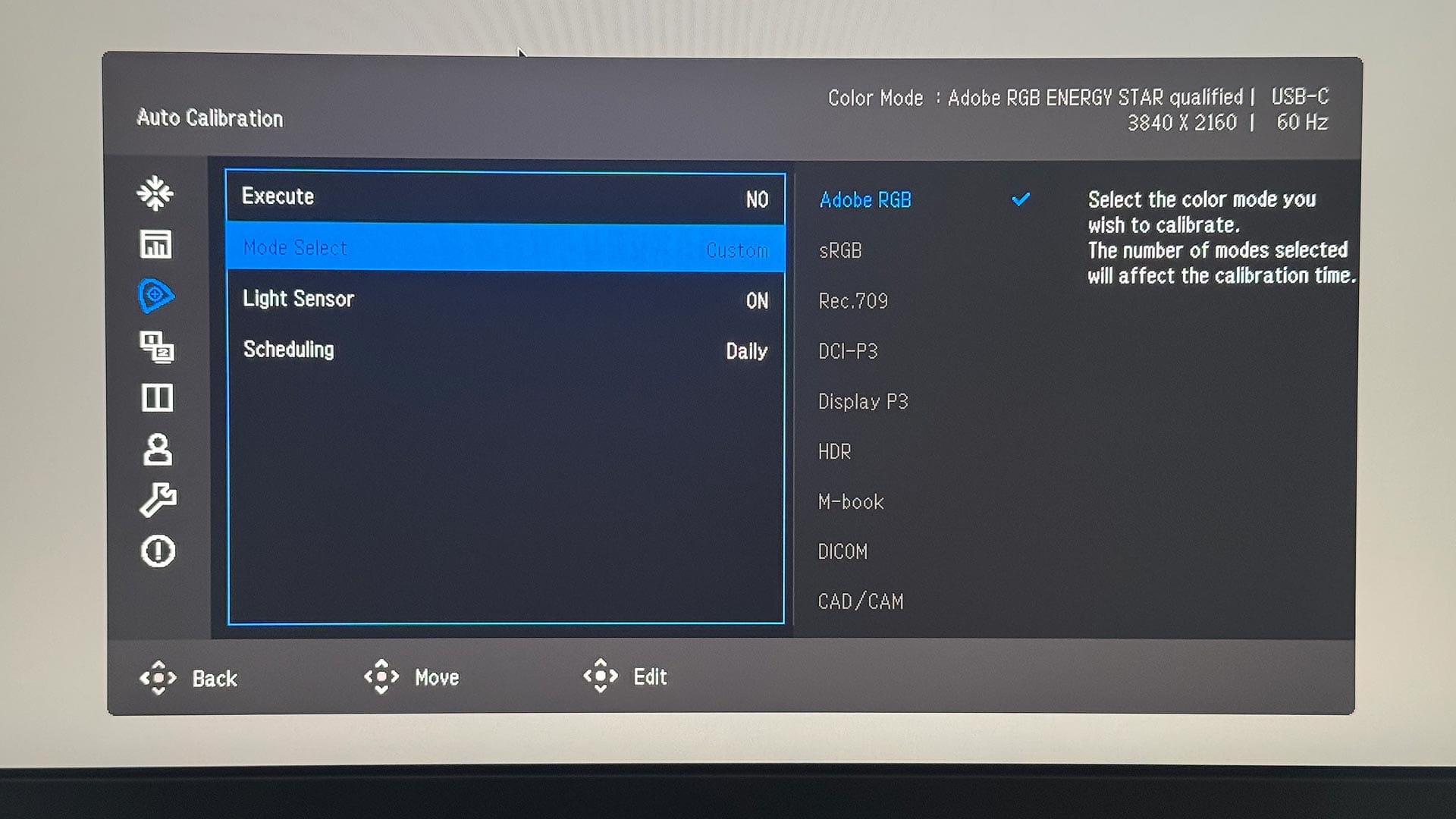
This ability to recalibrate built-in modes is a significant improvement over earlier generations and ensures those modes remain accurate throughout the display’s lifespan.
Brightness and calibration behavior
Brightness plays a critical role in color calibration. In creative workflows, luminance must be matched to the viewing environment so images and video are not exported too bright or too dark.
When calibrating with the built-in colorimeter, brightness remains adjustable afterward. Minor adjustments are generally acceptable, but larger changes can undermine the calibration by altering the display’s luminance response. For this reason, I recommend disabling “Software Dimming” in Display Pilot, which reduces brightness at the operating system level rather than on the display itself.
Alternatively, users can rely on the PD2770U’s built-in ambient light sensor to automatically adjust brightness based on room lighting. I tested the sensor in light and dark ambient light, and it appropriately adjusted display brightness in both scenarios.
Calibrating using Palette Master Ultimate (PMU)
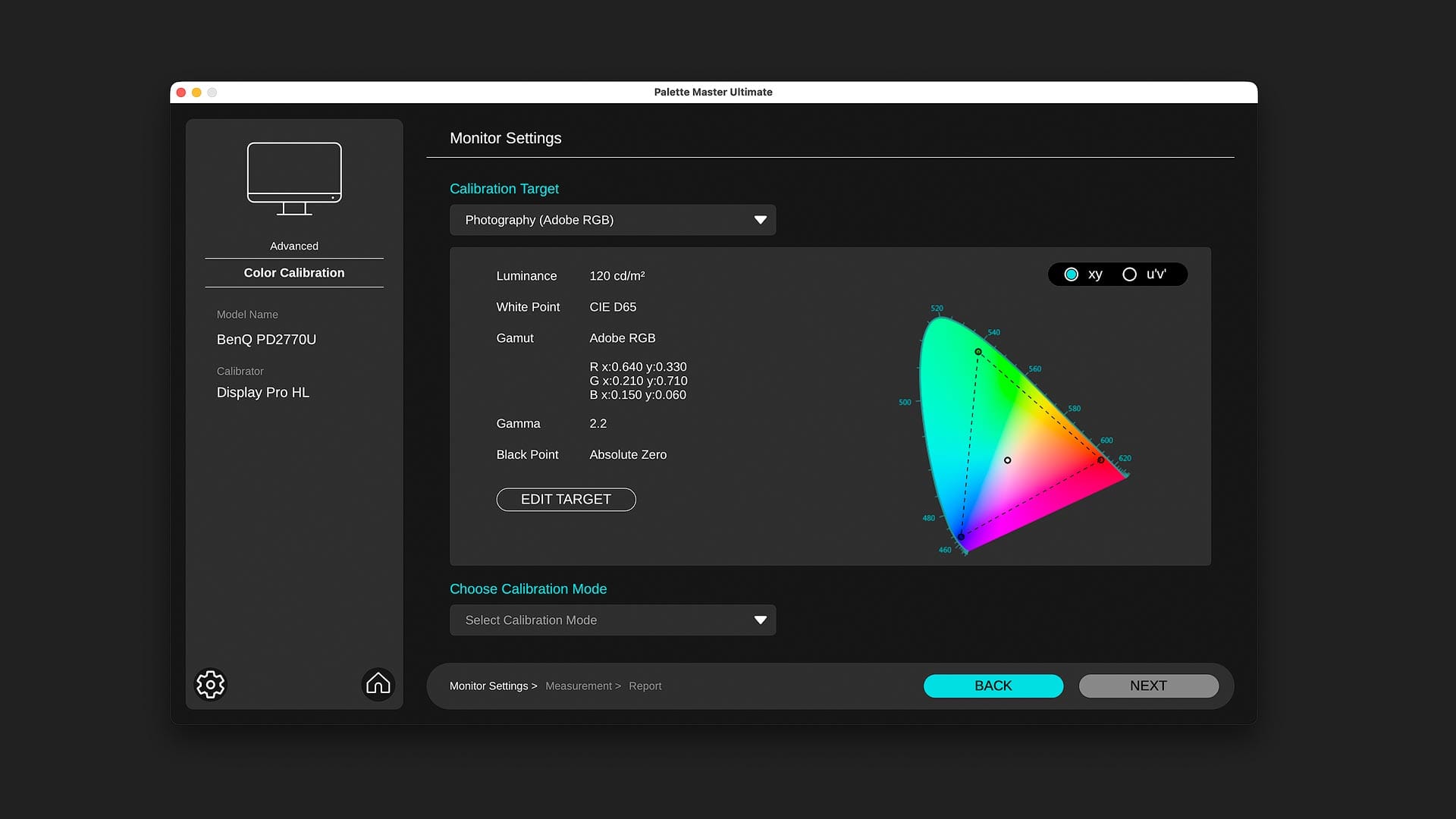
The PD2770U also provides three custom calibration slots configured using Palette Master Ultimate with a third-party colorimeter. This approach offers more granular control, including fixed brightness targets, gamma selection, white point adjustment, and post-calibration reporting.
In PMU, brightness is set to a specific luminance value in cd/m² (typically between 80 and 120 cd/m² for photo and video work), depending on ambient lighting. Once calibration is complete, brightness is locked to preserve strict color accuracy.
Which calibration method should you use?
The built-in colorimeter is ideal for users who want a simple, low-friction calibration process and plan to rely primarily on BenQ’s built-in color modes. Advanced users who require fixed luminance targets, detailed reporting, or precise screen-to-print matching may prefer PMU with an external colorimeter.
Color accuracy results
At the time of this review, post-calibration reports can only be generated when creating custom calibrations with PMU. Which means, unfortunately, it's not possible to quantify the accuracy of the built-in colorimeter. BenQ told me they are working on an update for PMU to support the built-in colorimeter, but for now they don't work together (I will update this review accordingly when/if this update is provided).
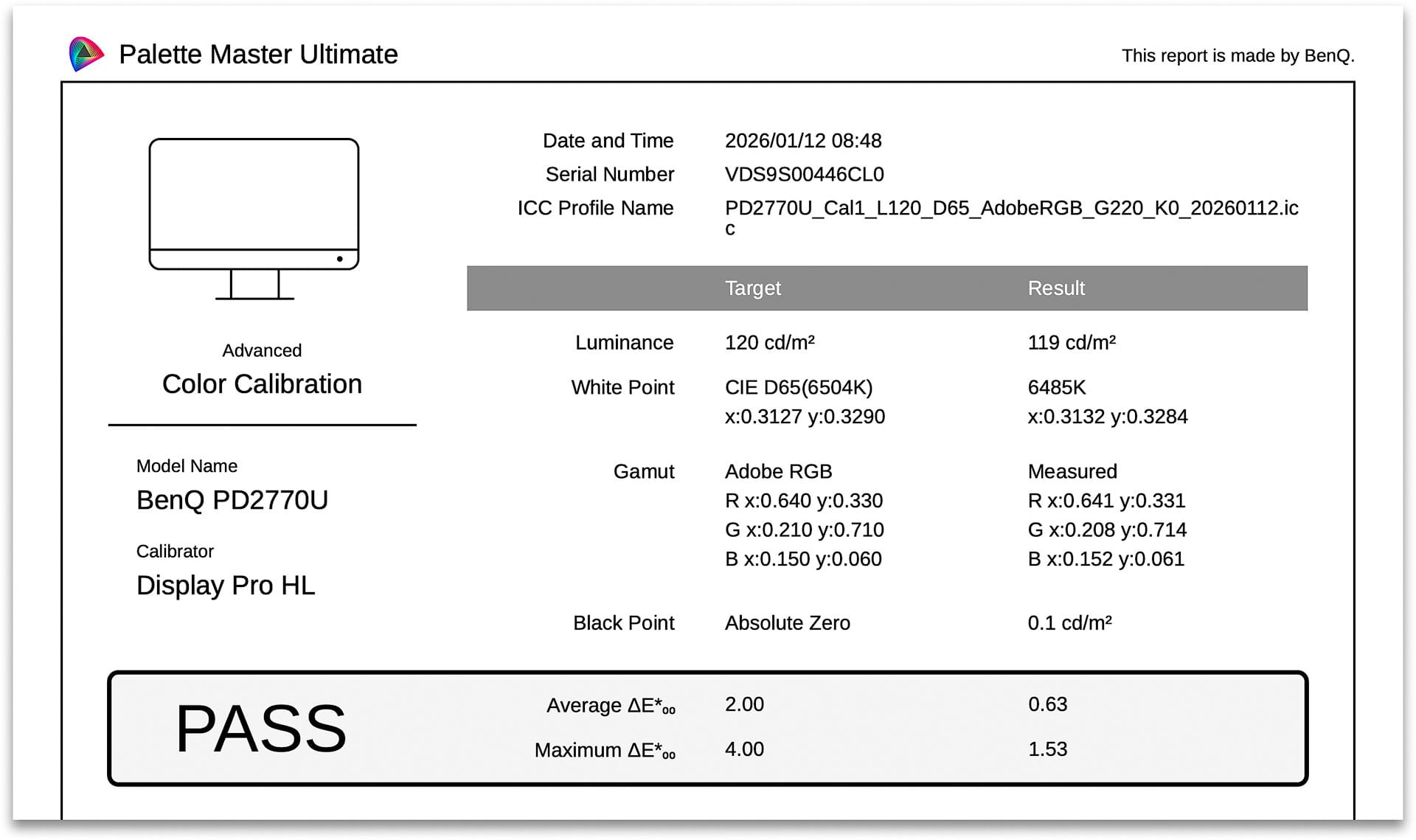
To verify the color accuracy of the PD2770U then, I used PMU with my own colorimeter to create custom color modes for Adobe RGB (for photo editing) and Rec.709 (for video). According to the report published by PMU, my display has an average ΔE (Delta E) value of 0.63 for Adobe RGB and 0.73 for Rec.709, and maximum Delta E values of 1.53 and 1.34, respectively. Any value below 2.0 is considered imperceptible to the human eye, so these numbers are very good.
ICC profile syncing
Display Pilot can automatically sync ICC profiles at the operating system level when switching between built-in color modes. This is particularly useful for users who regularly move between different color spaces and applications.
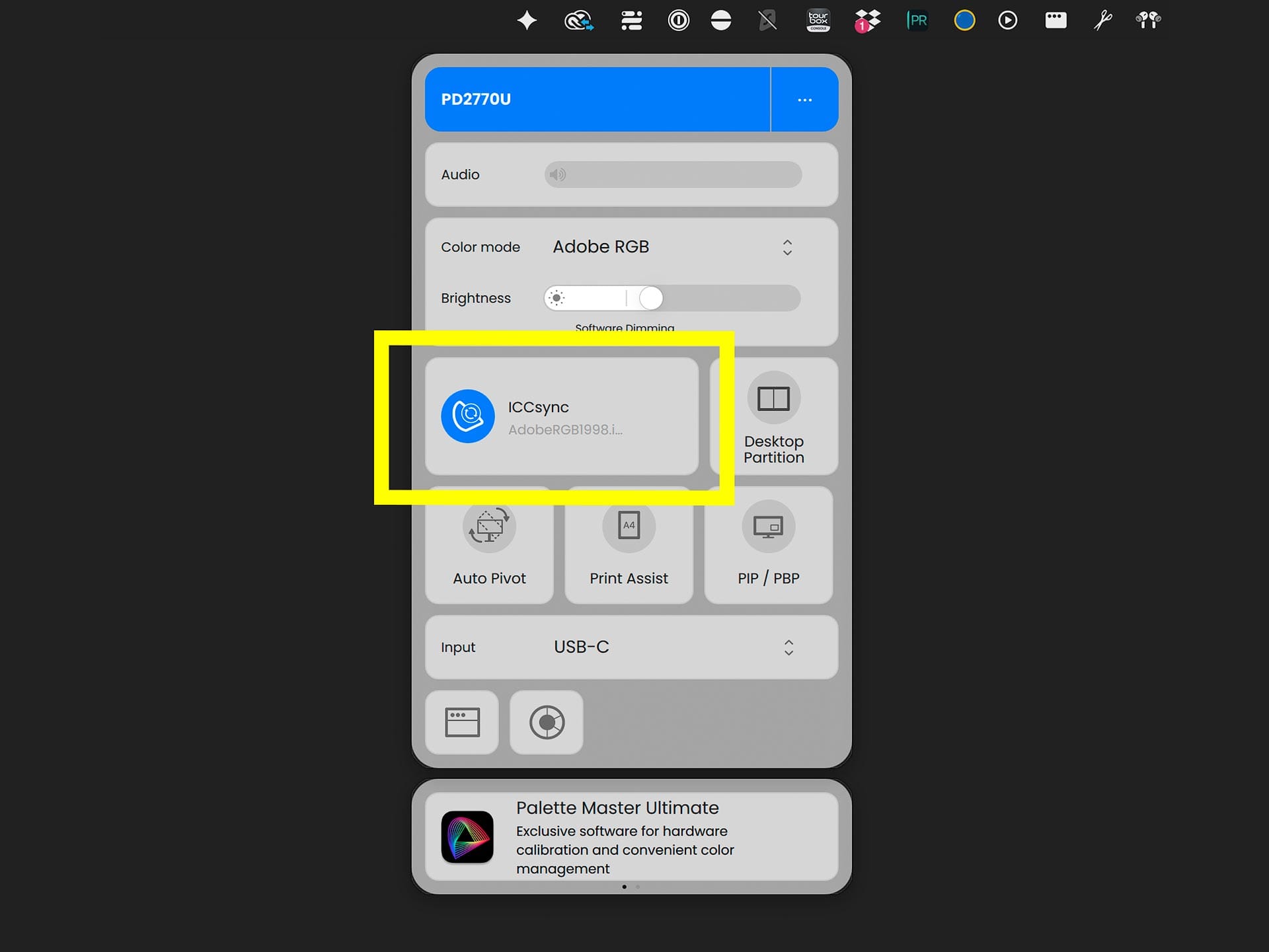
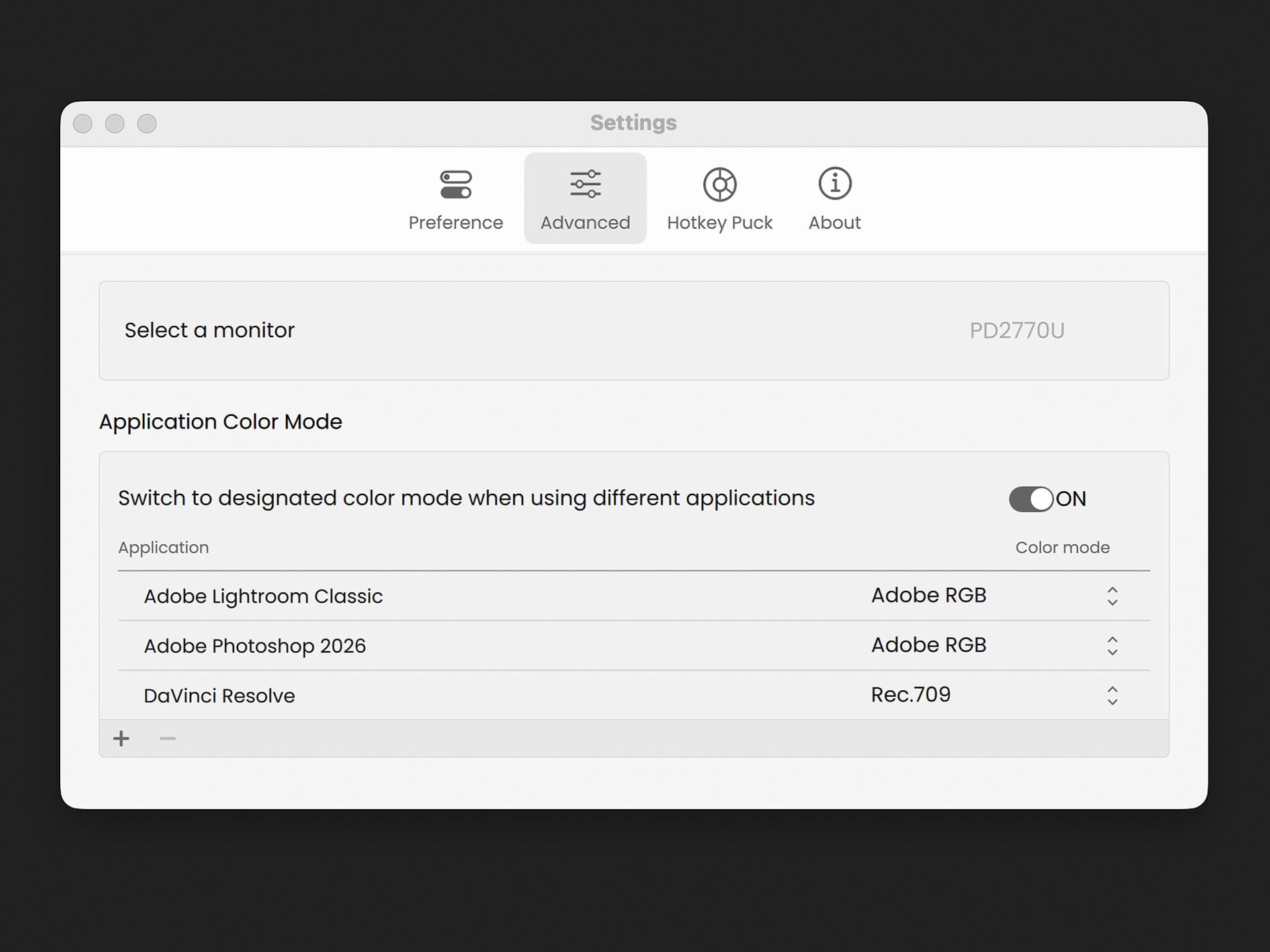
If you work exclusively in a single color mode, ICC sync likely offers little practical benefit. If, however, you regularly switch between color modes, ICC sync becomes both convenient and intuitive. Its value increases further when you optionally bind specific applications to specific color modes in Display Pilot.
For example (image below), you can pair DaVinci Resolve with Rec.709, or Photoshop and Lightroom with Adobe RGB. When an assigned application is launched, Display Pilot automatically switches the display’s color mode and updates the corresponding ICC profile at the operating system level. Very handy.
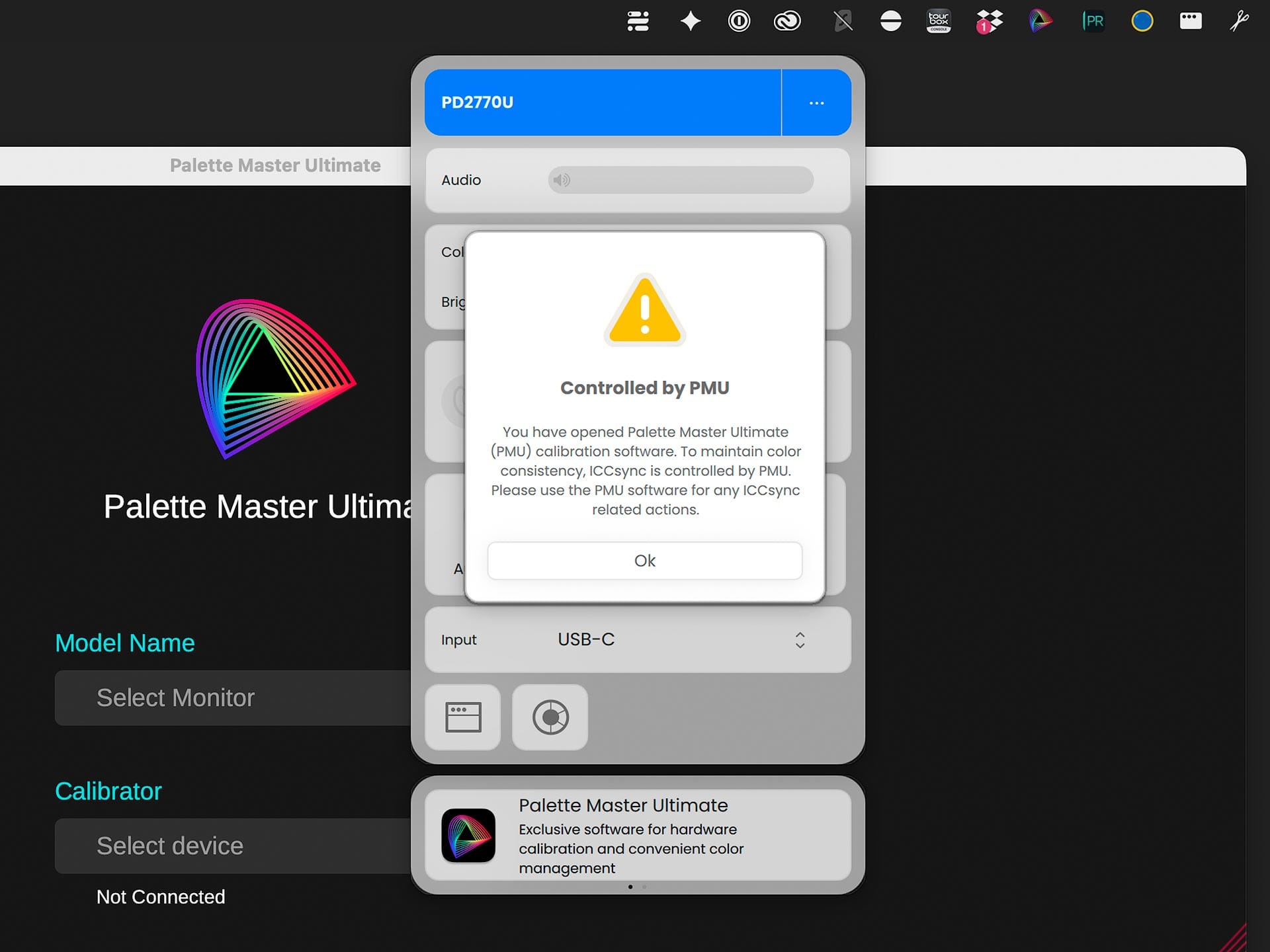
This workflow breaks down, however, when mixing built-in modes with PMU-generated custom calibrations. Display Pilot cannot manage PMU profiles, and PMU’s own ICC switching behavior is inconsistent. My advice? If creating custom color calibrations, switch ICC profiles manually in the operating system instead of relying on BenQ's automated ICC syncing.
Visual uniformity
The PD2770U includes a Visual Uniformity feature designed to even out luminance variations across the panel. Two modes are available: “Uniformity First” and “Brightness First.”
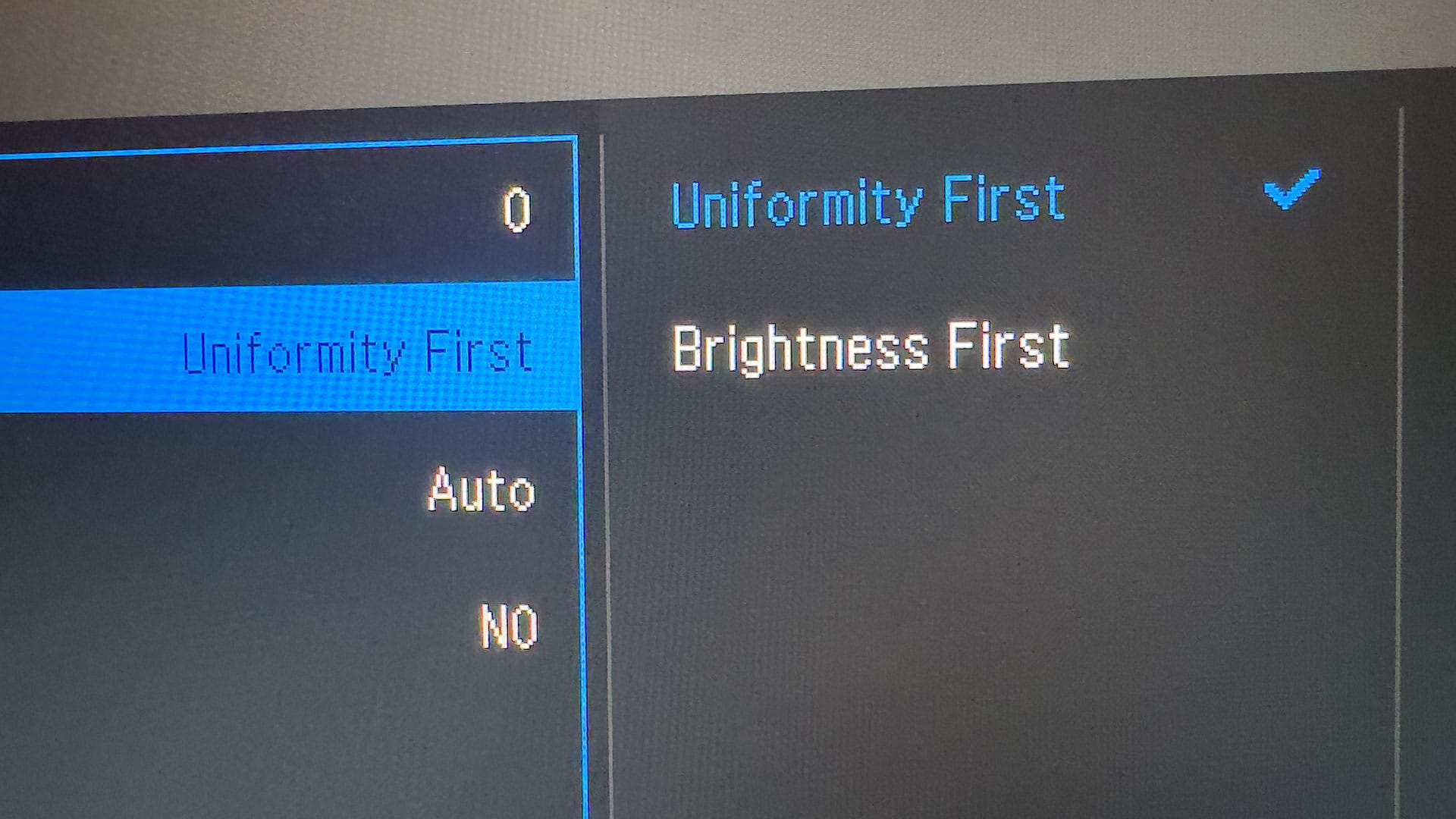
Uniformity First prioritizes consistent luminance by reducing brighter areas to match darker regions, while Brightness First preserves higher peak brightness at the expense of uniformity.
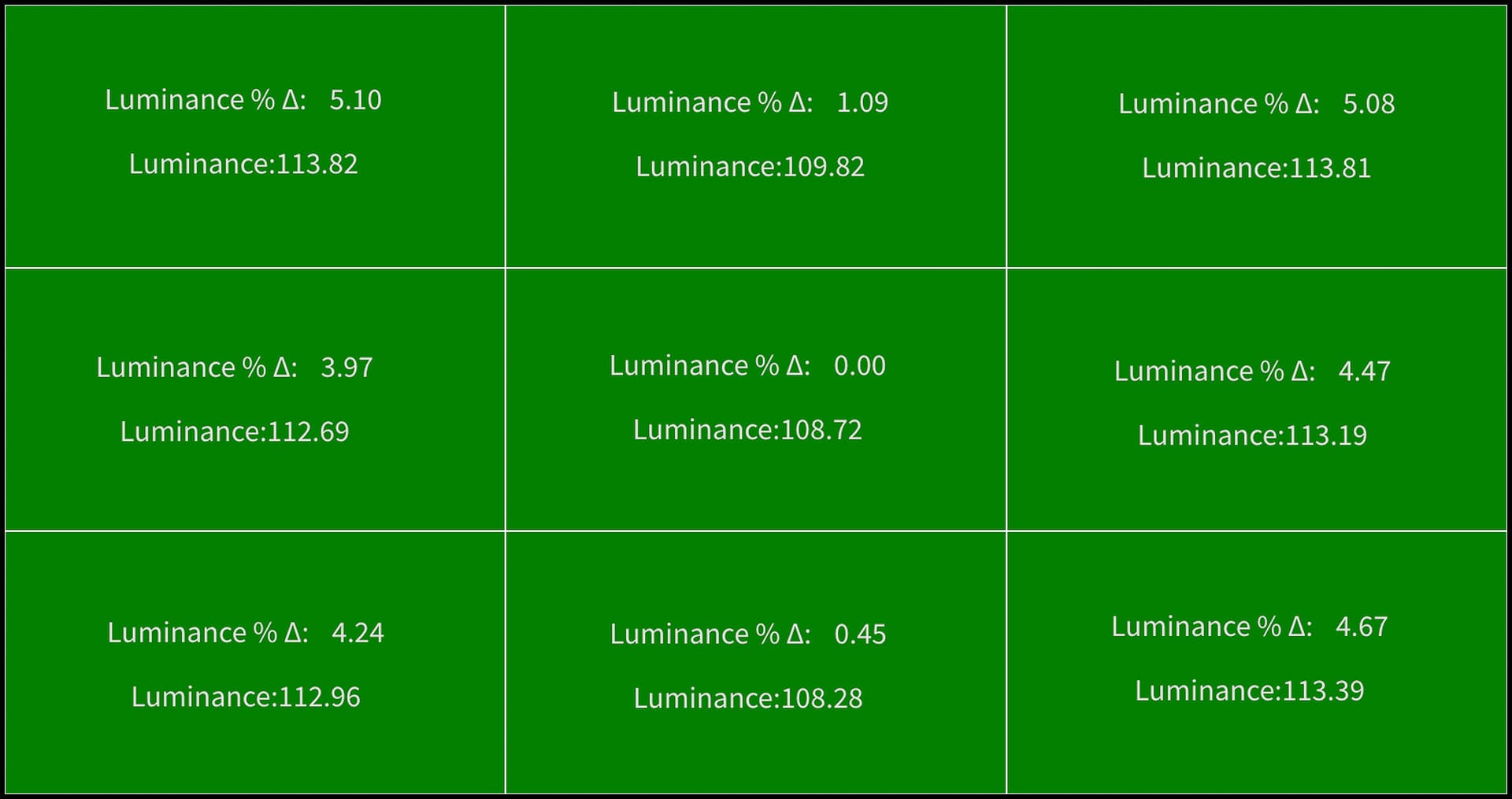
PMU does not provide brightness uniformity testing, so instead I used the Calibrite Display Pro HL and Calibrite macOS software. The screen was set to the built-in Adobe RGB color mode.
Here is the result with "Uniformity First" selected:
And here is the same test with "Brightness First" selected:
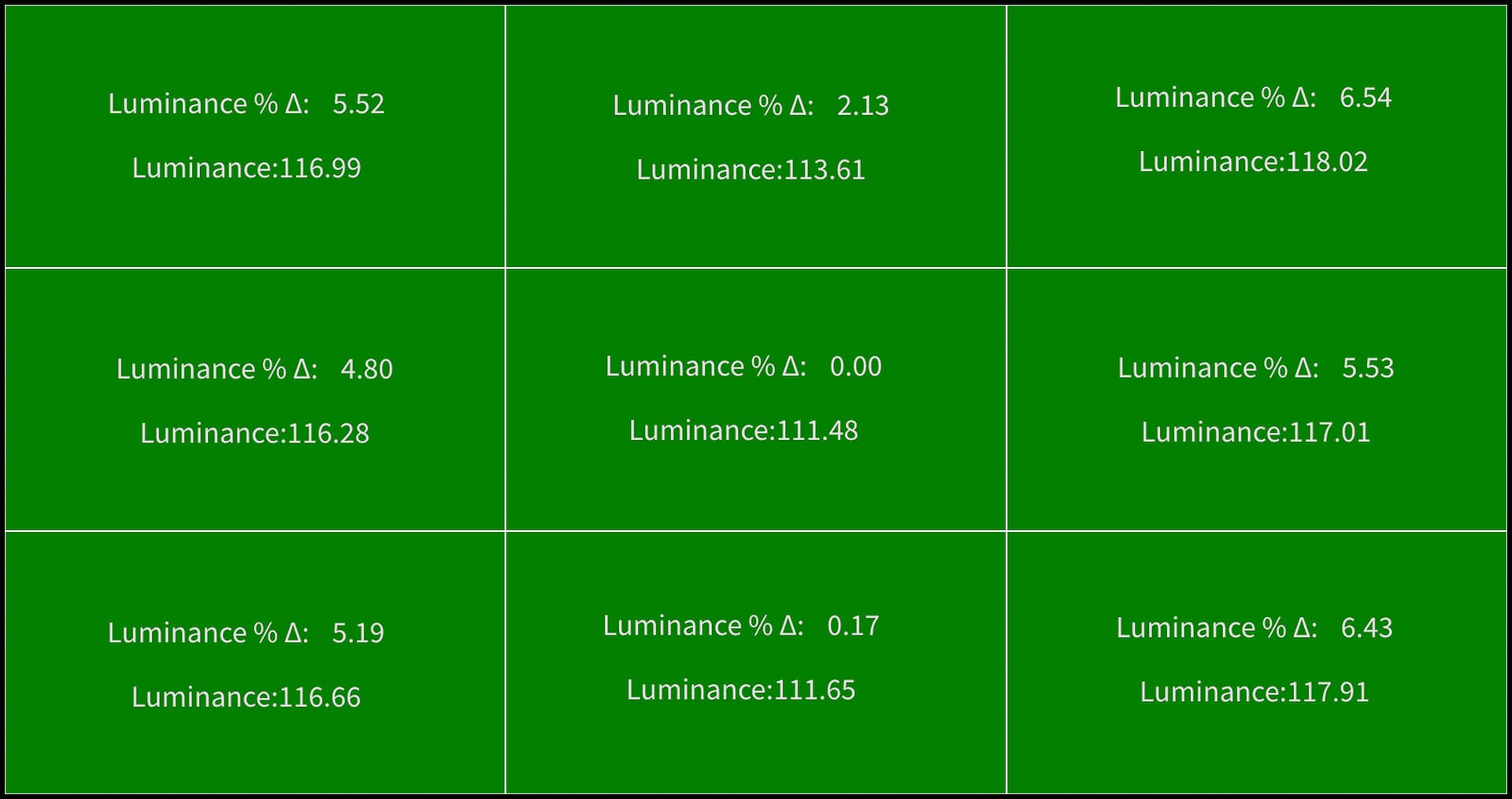
In “Uniformity First” mode, the luminance deltas are lower, meaning they more closely match the display's center luminance. In "Brightness First", the luminance deltas are higher, meaning the display is brighter and less uniform.
In general, luminance differences become noticeable to the human eye at around a 10% delta. Both uniformity modes on the PD2770U remain below this threshold, meaning either option delivers acceptable luminance consistency for everyday use, with “Uniformity First” providing the best results.
For photographers and video editors working in controlled lighting environments, “Uniformity First” is the better choice. More consistent brightness across the panel makes it easier to judge exposure, gradients, and tonal transitions, especially in skies, shadows, and other smooth areas where uneven illumination can be distracting. “Brightness First” may be preferable in brighter rooms or for general desktop use, but for color-critical photo and video work, prioritizing uniformity over peak brightness generally works best.
RJ45 network connectivity
Another first with the PD2770U is RJ45 wired network connectivity. This provides centralized device management using BenQ's DMS local network control software (Windows), allowing IT administrators to remotely manage color modes, calibration scheduling, and energy settings across multiple screens on a local network.
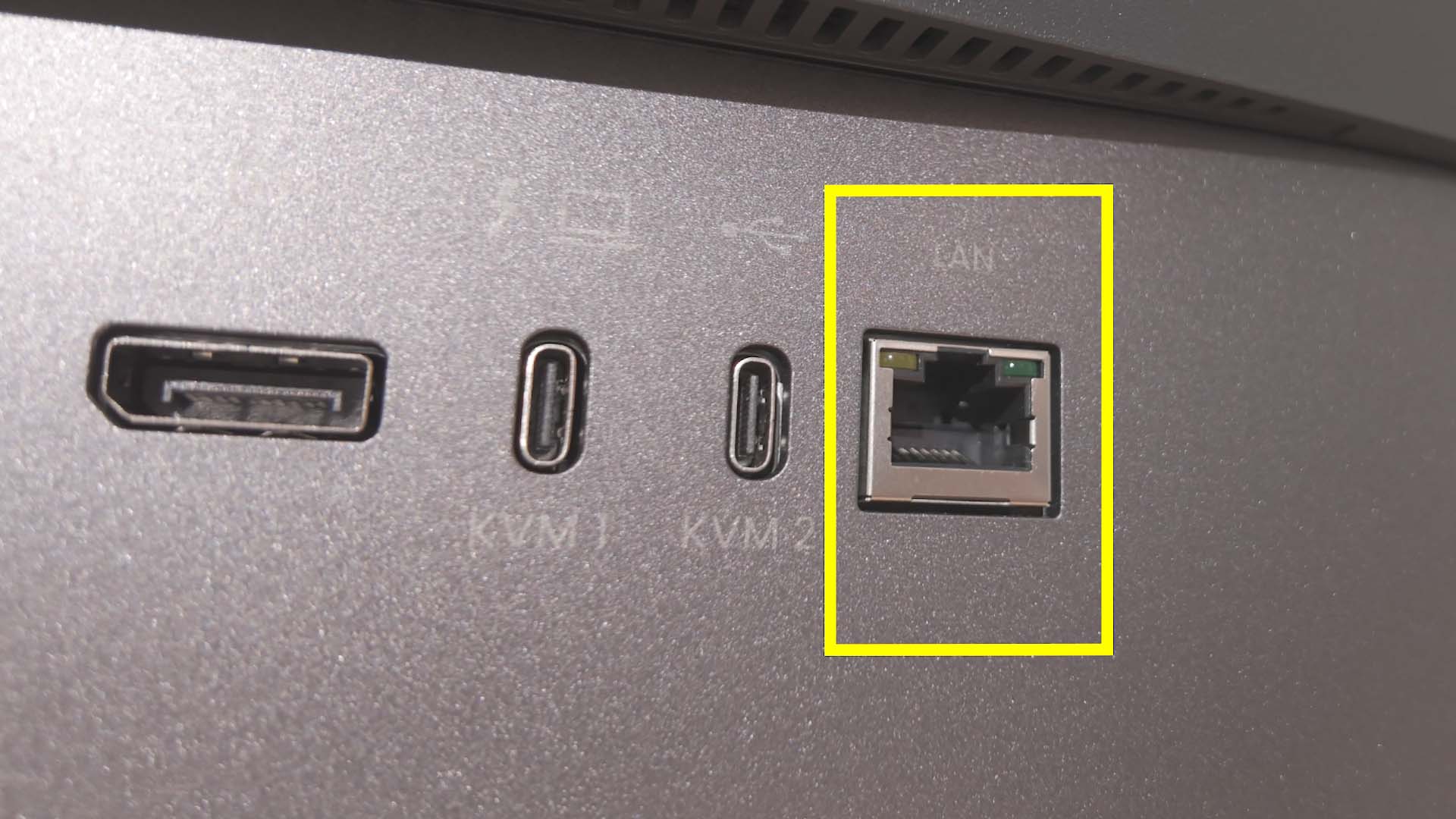
As a macOS user, I wasn't able to test the RJ45 networking, but I can appreciate how useful this could be in studios, schools, businesses or other group environments where creatives are sharing files and working together.
Final thoughts on the PD2770U
If you’re looking for a 27-inch, 4K display for photo editing, video editing, or any kind of creative work where color is important, the PD2770U is an excellent choice. It delivers strong color accuracy and good brightness uniformity, but its standout feature is its built-in colorimeter, for it makes maintaining a color accurate workflow easier and more straightforward for the average user.
Advanced users who prefer to use their own colorimeters with Palette Master Ultimate can still do so with the PD2770U, but the added cost of the built-in colorimeter may be unnecessary in that case. BenQ offers several less expensive displays that are just as color-accurate but without the integrated colorimeter, and those models may be a better fit for users who plan to create custom calibrations.
As a macOS user, I do wish the PD2770U were a 5K display rather than 4K, though it would not be surprising to see a higher-resolution model in the near future. The panel’s Nano Matte finish is also not my personal favorite. I prefer the less reflective matte coating used on BenQ’s PhotoVue displays, but the PD2770U strikes a reasonable compromise for users who want the neutrality of matte without fully sacrificing the richness and clarity associated with glossy panels.
Overall, the PD2770U remains a compelling option for creatives who want dependable, accurate color with minimal friction. At a current MSRP of $1,699, it is clearly an investment. That said, based on my long-term experience with BenQ displays and my own photo-editing workflow, it is difficult to put a price on trust, knowing that the colors I see on screen are accurate and will not compromise my work when it is printed, published, or shared elsewhere.